

Crawl Websites via Web App
1
Create New Source
- Go to Corpora in the Ultravox web application.
- Select the corpus that will hold the new source. If you don’t have one, create a new corpus.
- Click
Add Sourcein the top right corner.
2
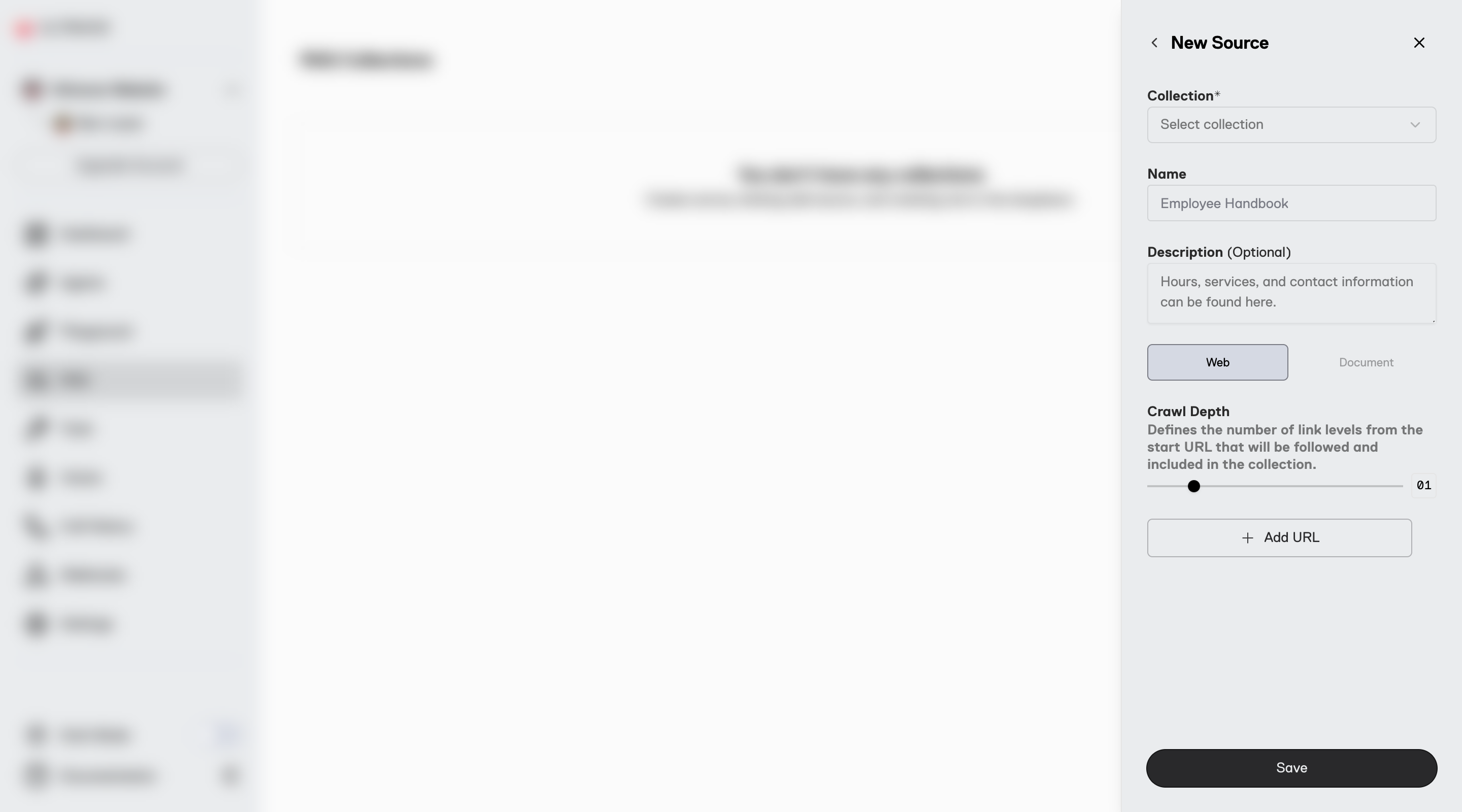
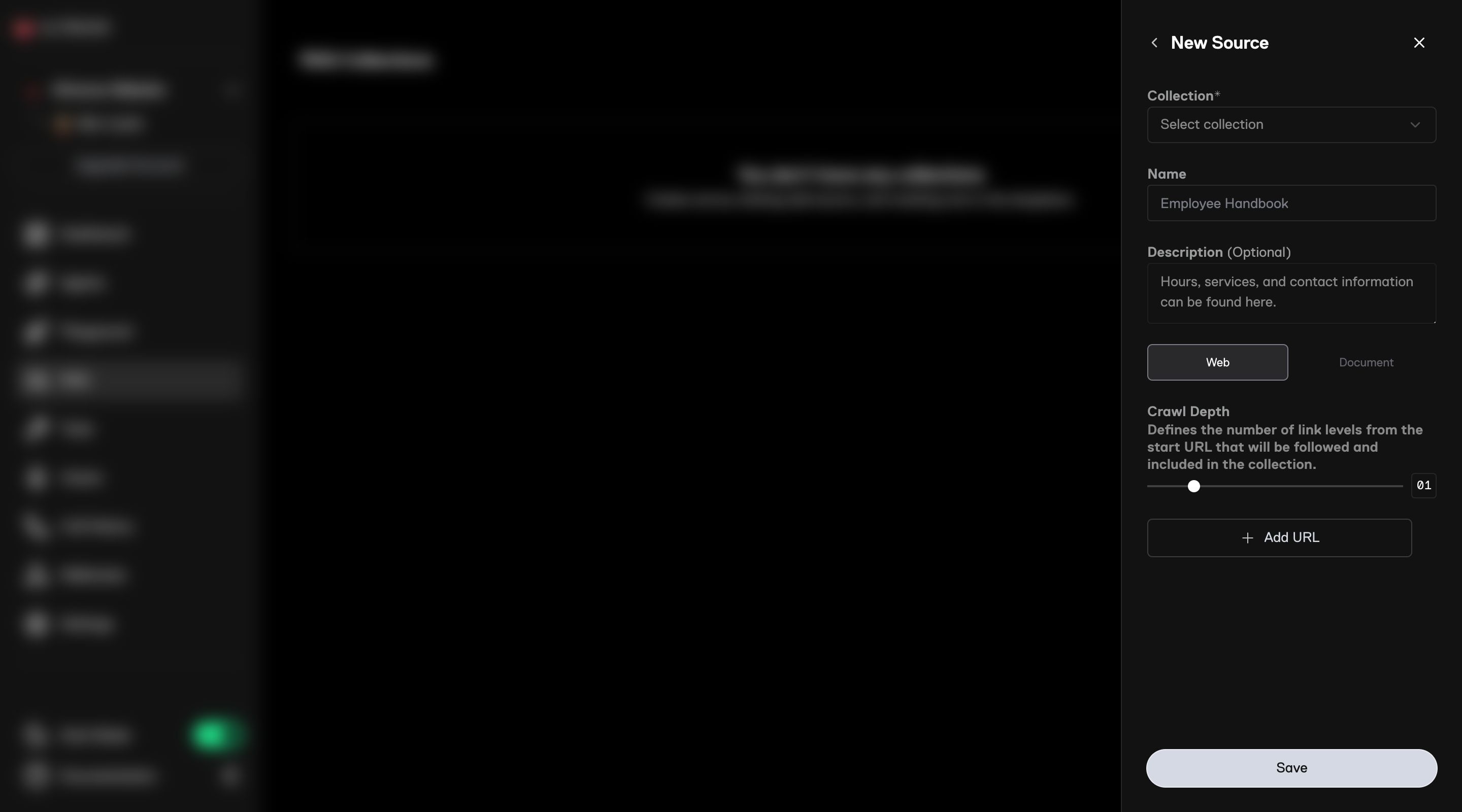
Add Details and URLs
- Add a
Nameand (optionally) aDescriptionfor the new source. - Select
Web. - Set the
Crawl Depth. See Crawl Depth to choose the right value. - Click
Add URLfor each start URL.
3
Save
- Click
Saveand wait for your pages to be crawled and ingested. Larger crawls take longer.
Crawl Websites via API
To crawl a website using the API, follow these steps:1
Step 1: Create New Source with Start URLs
- Use the Create Corpus Source API
- Use
crawlto provide thestartUrlsandmaxDepth - This returns the unique ID for the source
If you leave out
maxDepth, the API uses a crawl depth of 3. Set it explicitly so you know what you’re getting.2
Step 2: Wait for the Crawl to Finish
- Use the Get Corpus Source API
stats.statusisSOURCE_STATUS_INITIALIZINGwhile the crawl runsstats.statuschanges toSOURCE_STATUS_READYwhen the content can be queried
3
Step 3: Review Crawled Documents
- Use the List Corpus Source Documents API
- Each document’s
metadata.publicUrlshows the page or file it came from - If pages are missing, see Websites Are Not Always Built Like They Look
Crawl Depth
Crawl depth controls how many levels of links are followed from each start URL. Each level is one more click away from a start URL.
For example, say your start URL is
https://www.example.com/help. That page links to two help articles, and the site’s header links to /pricing and /about:
- Depth 1 crawls
/helponly. - Depth 2 crawls
/help,/help/billing,/help/returns,/pricing, and/about. - Depth 3 also crawls
/help/refunds,/enterprise, and every other page linked from the depth 2 pages.
- Depth 1 doesn’t follow any links. To include the pages your start URL links to, use depth 2.
- Depth isn’t the number of folders in a URL.
https://www.example.com/docs/guides/setupisn’t automatically “depth 3”. If your start page links straight to it, it’s depth 2. - Menus, headers, and footers count as links. Any page in the site’s main menu is at depth 2 from a page that shows the menu. Starting at
/helpdoesn’t keep the crawl inside/help. - Every start URL is depth 1. Adding a page as a start URL is often a better way to reach it than raising the depth.
- The number of pages grows fast. If each page has 30 links, depth 3 can reach almost 1,000 pages. A crawl stops at
maxDocuments(200 at most per source). The crawler finishes one level before starting the next, so the deepest level is the one that gets cut short.
Which Pages Get Crawled
The crawler only follows links to the same host as one of your start URLs. The host is the scheme and the full hostname, likehttps://www.example.com. Paths don’t matter, so any page on an allowed host can be crawled.
- Each page is loaded in a headless browser, so JavaScript-heavy sites and single-page apps work.
- Linked documents such as PDFs, Word files, and PowerPoint decks are downloaded and ingested too, if they’re on an allowed host. They count toward
maxDocuments. - Every start URL’s host is allowed for the whole source, so the crawler follows links between all of them.
Websites Are Not Always Built Like They Look
To a visitor, a website looks like one place, with one logo and one menu. Behind the scenes, its sections often live on different hosts:- A help center on
support.example.comorexample.zendesk.com - Developer docs on
docs.example.com - A blog on
blog.example.com - A store on
shop.example.comorexample.myshopify.com - PDFs and downloads on a CDN or storage bucket, like
cdn.example.comorexample.s3.amazonaws.com - Both
example.comandwww.example.com, which are two different hosts
https://www.example.com and the menu’s Help link goes to https://support.example.com, the crawl won’t follow it, at any depth. Add a start URL for each host you want crawled.
Other things can hide pages from the crawler:
- Redirects to another host. If
https://example.comredirects tohttps://www.example.com, the links on the page you land on point towww.example.com, which isn’t an allowed host. Use the URL your browser ends up on as the start URL. - Links that aren’t real links. The crawler follows
<a href>links. It doesn’t hover or click, so menus that load their items only on hover or click, or buttons that navigate with JavaScript, aren’t followed. - Pages nothing links to. The crawler doesn’t read sitemaps or use site search. Add pages like these as start URLs.
- Pages behind a login. The crawler can’t fill in login forms or use SSO. Sites protected by HTTP basic auth can be crawled (see Crawling Sites with Basic Auth). For other logins, download the content and add it as static documents instead.
Each source can hold up to 200 documents. For larger sites, create one source per host or section. A corpus can have up to 20 sources.
Crawling Sites with Basic Auth
If a site is protected by HTTP basic auth, put the username and password in the start URL:- Add the credentials to every start URL on the protected host
- Percent-encode special characters in the username or password, such as
@(%40),:(%3A),/(%2F), and#(%23). For example,p@ssbecomesp%40ss - This works in both the web app and the API
Crawl Settings
The primary fields thecrawl object accepts are as follows:
Recrawling
A crawl captures your site as it was when the crawl ran. To pick up changes, or to change the start URLs or depth, use the Update Corpus Source API. Updatingcrawl starts a new crawl and keeps the same source ID.
Your corpus stays queryable during a recrawl, but it may return outdated content until the recrawl finishes. stats.status is SOURCE_STATUS_UPDATING while it runs.