> ## Documentation Index
> Fetch the complete documentation index at: https://docs.ultravox.ai/llms.txt
> Use this file to discover all available pages before exploring further.
# Overview: RAG
> Give you agent access to product documents, KBs, and more.
LLMs have tremendous knowledge about the world, but they don't have all the up-to-date specifics about your organization, your products, or other relevant information you might want to provide to your AI voice agents.
RAG is a common technique for grounding agents in the relevant information for your use case.
## Examples of Knowledge Sources
Let's consider some of the content that might be useful to serve some popular use cases:
**Customer Success & Support:**
* **Product Documentation** → user guides, FAQs, troubleshooting steps.
* **Onboarding Materials** → getting started guides, best practices, transcripts from training videos.
**Customer Acquisition:**
* **Product Information** → features, pricing tiers, competitive comparisons.
* **Sales Scripts** → qualification questions, objection handling, industry-specific use cases.
**Operations:**
* **Internal Processes** → call routing rules, department directories.
* **Survey Materials** → question banks, follow-up questions, rating scales.
## Adding RAG to Ultravox
As we saw in the [Tools](/tools/overview) overview, tools provide power-ups for your agents. To use RAG with an Ultravox agent, it's as simple as using the built-in `queryCorpus` tool and instructing the agent on how to use the tool.
### Using the Web App
The easiest way to create a new knowledge base (we call them `Corpora`) is to use the Ultravox web application. You can also [use the API](#using-the-api).
* Go to [RAG](https://app.ultravox.ai/rag) in the Ultravox web app.
* Click `New Source` in the top right corner.
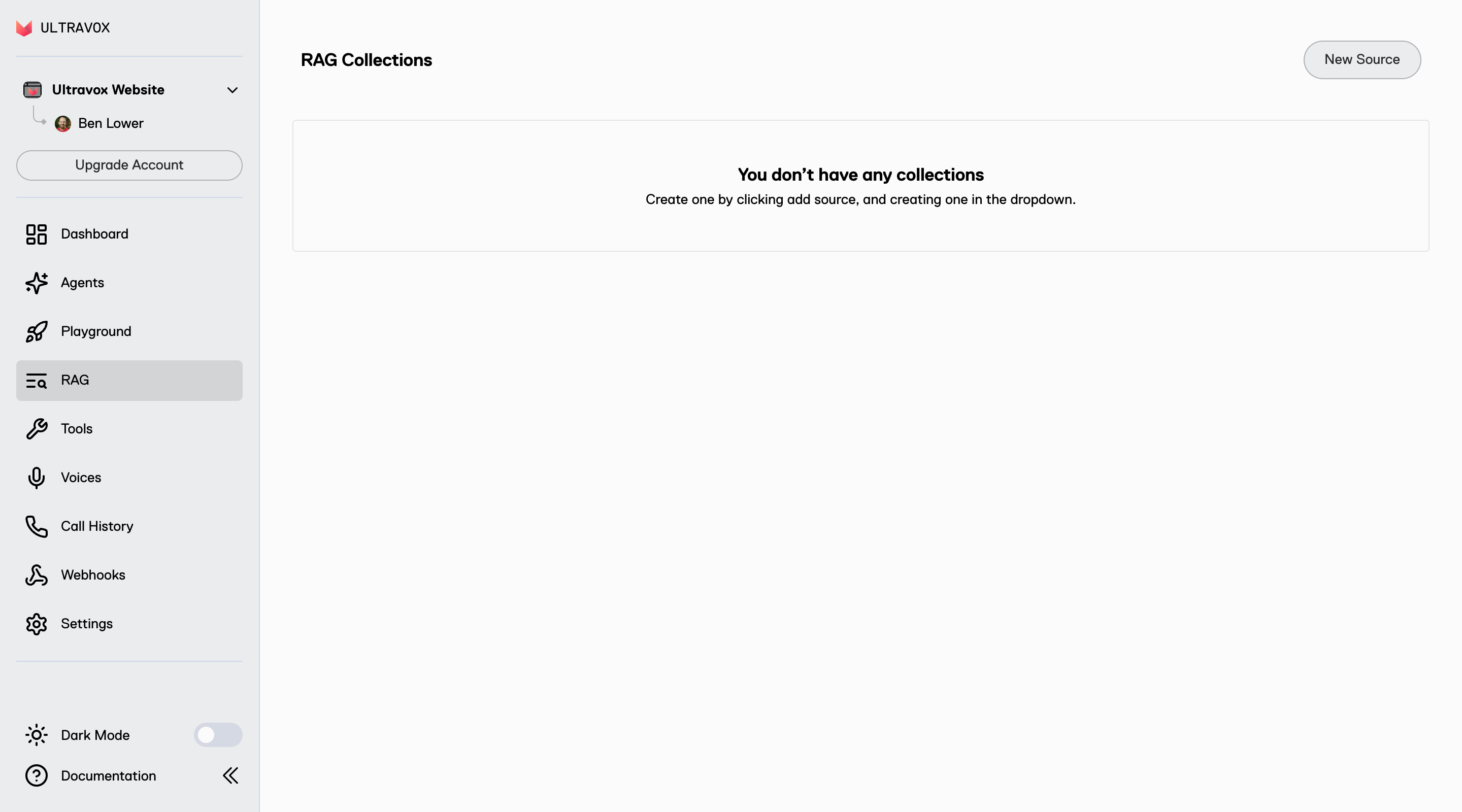
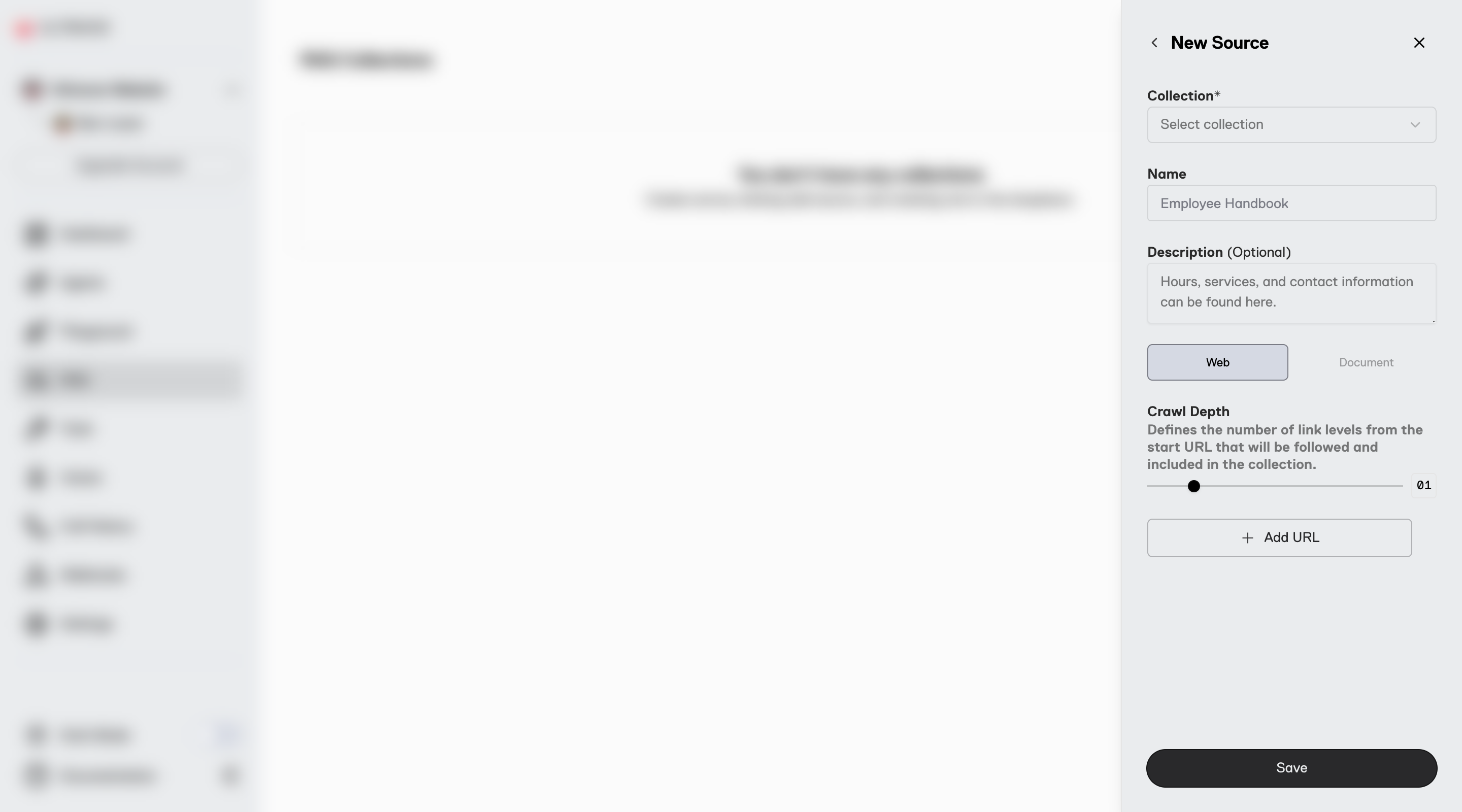
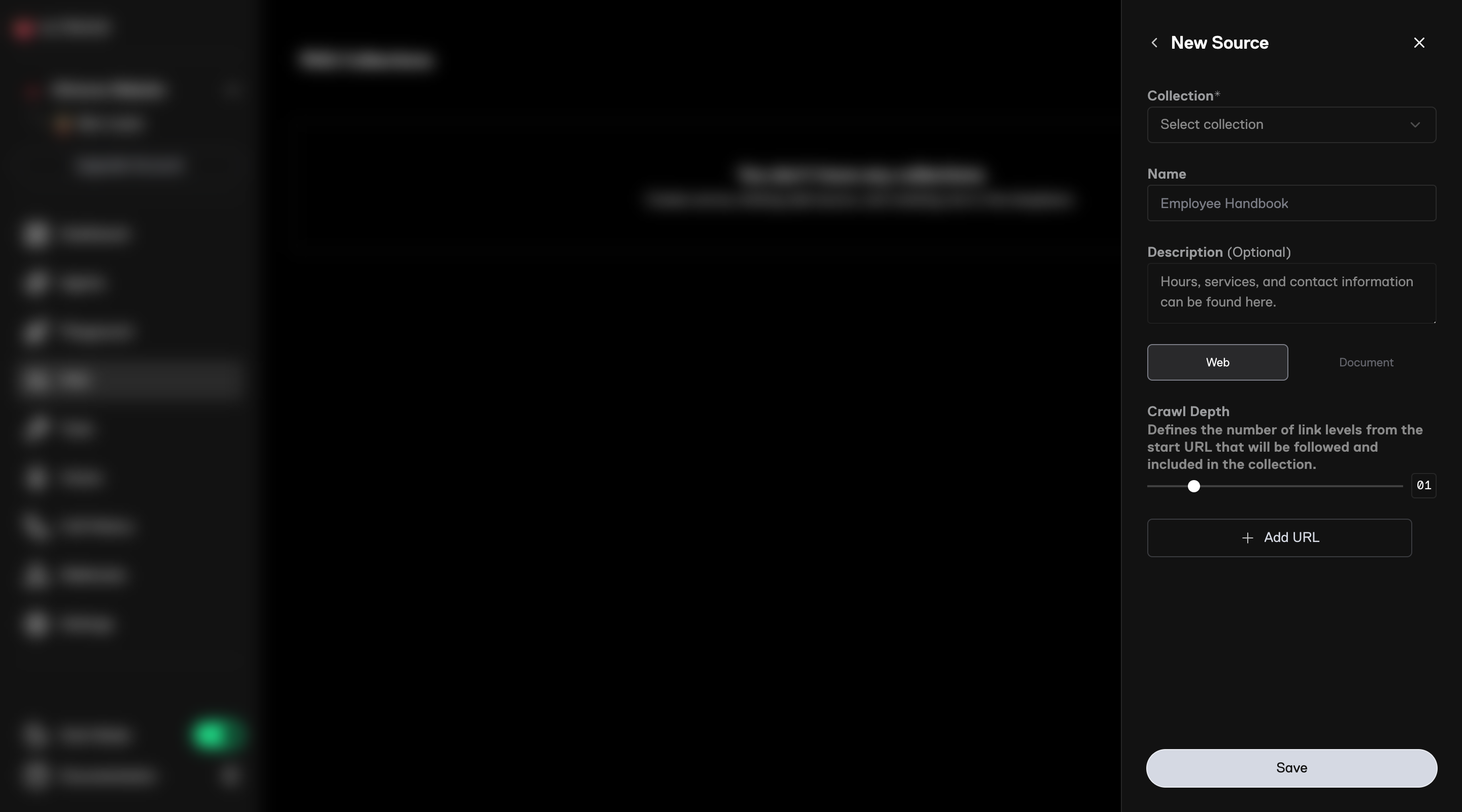
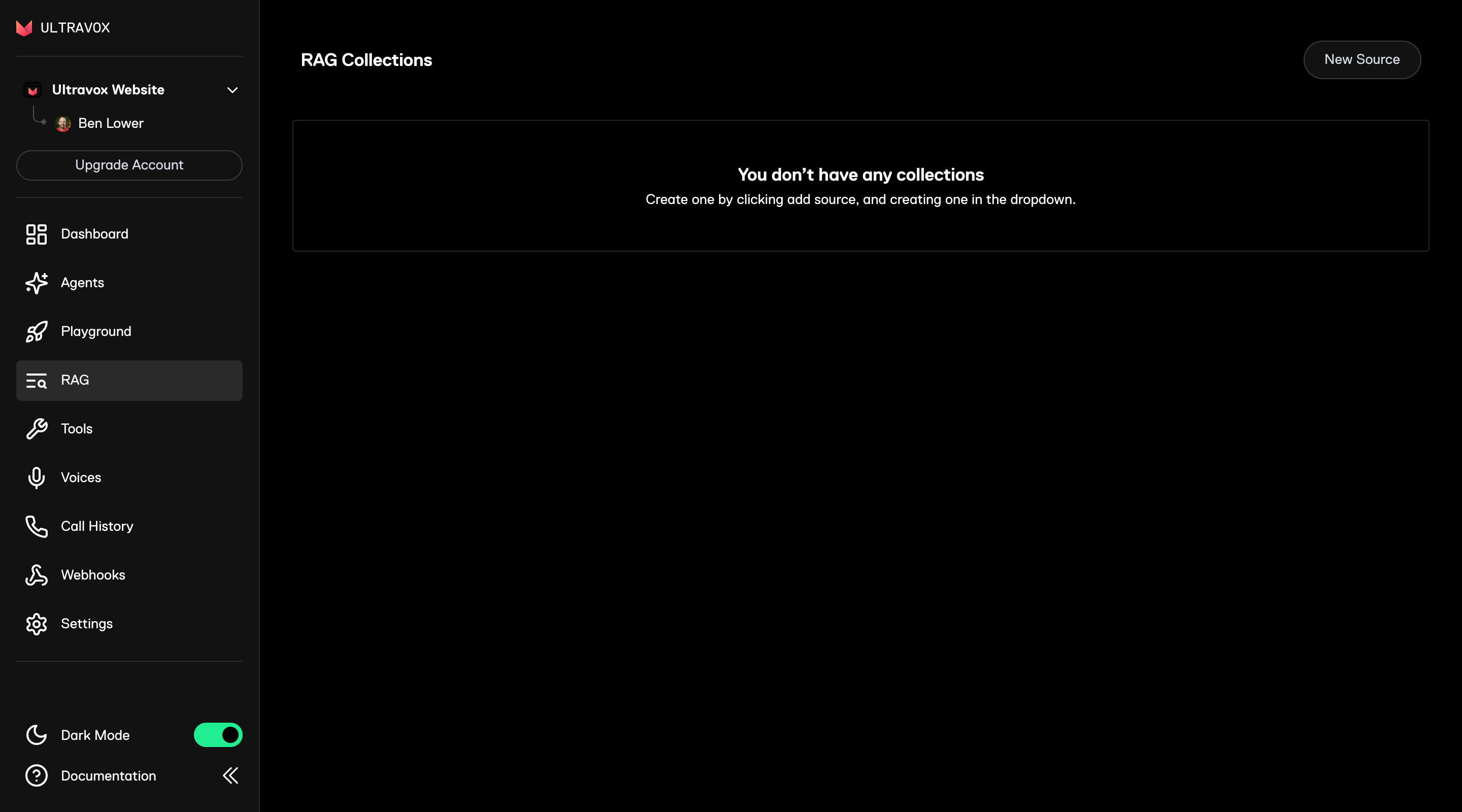 * Under `Collection` click on `New Collection`.
* Give it a `Name` and `Description` then click `Save`.
* Select the `Collection` you just created.
* Add a `Name` and `Description` for the new source.
* Click `Web` and then add any URLs to be crawled.
* Click `Save` and then wait a few moments for the pages to be crawled and the content to be ingested.
* Under `Collection` click on `New Collection`.
* Give it a `Name` and `Description` then click `Save`.
* Select the `Collection` you just created.
* Add a `Name` and `Description` for the new source.
* Click `Web` and then add any URLs to be crawled.
* Click `Save` and then wait a few moments for the pages to be crawled and the content to be ingested.
 Give the built-in [queryCorpus](/tools/built-in-tools#querycorpus) tool. to your agents and provide the `corpusId`. For example, if we wanted to create a voice agent to answer questions about Seattle, we could provide the tool like this:
```json theme={null}
{
"systemPrompt": "Use the queryCorpus tool to answer questions about Seattle.",
"selectedTools": [
{
"toolName": "queryCorpus",
"parameterOverrides": {
"corpus_id": "",
"max_results": 5
}
}
]
}
```
### Using the API
Ultravox provides the [corpus service](/api-reference/corpora/) for RAG.
Use the [Create Corpus](/api-reference/corpora/corpora-post) endpoint. Give your new corpus a name and (optional) description. This returns a `corpusId`.
Add a website to crawl using [Create Corpus Source](/api-reference/corpora/corpora-sources-post). Each source is given a unique `sourceId`. We will crawl the URL(s) and ingest all the content.
After everything is loaded, try some queries using the [Query Corpus](/api-reference/corpora/corpus-query) endpoint.
Give the built-in [queryCorpus](/tools/built-in-tools#querycorpus) tool. to your agents and provide the `corpusId`. For example, if we wanted to create a voice agent to answer questions about Seattle, we could provide the tool like this:
```json theme={null}
{
"systemPrompt": "Use the queryCorpus tool to answer questions about Seattle.",
"selectedTools": [
{
"toolName": "queryCorpus",
"parameterOverrides": {
"corpus_id": "",
"max_results": 5
}
}
]
}
```
### Using External Vector DB
Let's assume we have already stored our product documentation in a vector database and can search that content at `https://foo.bar/lookupProductInfo`.
All you need to do is create a custom tool that uses the external API and then give the tool to your agent.
Here's how we might create a tool for our Ultravox agent to use:
```js Example: Adding an external RAG tool theme={null}
{
"systemPrompt": "You are a helpful assistant. You have a tool called 'lookupProductInfo' that you must use to find answers.",
"model": "ultravox-v0.7",
"selectedTools": [
{
"temporaryTool": {
"modelToolName": "lookupProductInfo",
"description": "Searches official product documentation using semantic similarity to find relevant information. Use this tool to look up specific product features, specifications, limitations, pricing, or support information. The tool returns the most relevant text chunks from the documentation.",
"dynamicParameters": [
{
"name": "query",
"location": "PARAMETER_LOCATION_BODY",
"schema": {
"description": "A specific, focused search query to find relevant product information",
"type": "string"
},
"required": true
}
],
"http": {
"baseUrlPattern": "https://foo.bar/lookupProductInfo",
"httpMethod": "POST"
}
}
}
]
}
```
## Learn More
* Learn more about [Crawling Websites](./crawling-websites) for your knowledge base.
* Add [Static Documents](./using-static-documents) for RAG.
* Explore the full [Corpus API reference](/api-reference/corpora/overview).
Give the built-in [queryCorpus](/tools/built-in-tools#querycorpus) tool. to your agents and provide the `corpusId`. For example, if we wanted to create a voice agent to answer questions about Seattle, we could provide the tool like this:
```json theme={null}
{
"systemPrompt": "Use the queryCorpus tool to answer questions about Seattle.",
"selectedTools": [
{
"toolName": "queryCorpus",
"parameterOverrides": {
"corpus_id": "",
"max_results": 5
}
}
]
}
```
### Using the API
Ultravox provides the [corpus service](/api-reference/corpora/) for RAG.
Use the [Create Corpus](/api-reference/corpora/corpora-post) endpoint. Give your new corpus a name and (optional) description. This returns a `corpusId`.
Add a website to crawl using [Create Corpus Source](/api-reference/corpora/corpora-sources-post). Each source is given a unique `sourceId`. We will crawl the URL(s) and ingest all the content.
After everything is loaded, try some queries using the [Query Corpus](/api-reference/corpora/corpus-query) endpoint.
Give the built-in [queryCorpus](/tools/built-in-tools#querycorpus) tool. to your agents and provide the `corpusId`. For example, if we wanted to create a voice agent to answer questions about Seattle, we could provide the tool like this:
```json theme={null}
{
"systemPrompt": "Use the queryCorpus tool to answer questions about Seattle.",
"selectedTools": [
{
"toolName": "queryCorpus",
"parameterOverrides": {
"corpus_id": "",
"max_results": 5
}
}
]
}
```
### Using External Vector DB
Let's assume we have already stored our product documentation in a vector database and can search that content at `https://foo.bar/lookupProductInfo`.
All you need to do is create a custom tool that uses the external API and then give the tool to your agent.
Here's how we might create a tool for our Ultravox agent to use:
```js Example: Adding an external RAG tool theme={null}
{
"systemPrompt": "You are a helpful assistant. You have a tool called 'lookupProductInfo' that you must use to find answers.",
"model": "ultravox-v0.7",
"selectedTools": [
{
"temporaryTool": {
"modelToolName": "lookupProductInfo",
"description": "Searches official product documentation using semantic similarity to find relevant information. Use this tool to look up specific product features, specifications, limitations, pricing, or support information. The tool returns the most relevant text chunks from the documentation.",
"dynamicParameters": [
{
"name": "query",
"location": "PARAMETER_LOCATION_BODY",
"schema": {
"description": "A specific, focused search query to find relevant product information",
"type": "string"
},
"required": true
}
],
"http": {
"baseUrlPattern": "https://foo.bar/lookupProductInfo",
"httpMethod": "POST"
}
}
}
]
}
```
## Learn More
* Learn more about [Crawling Websites](./crawling-websites) for your knowledge base.
* Add [Static Documents](./using-static-documents) for RAG.
* Explore the full [Corpus API reference](/api-reference/corpora/overview).