> ## Documentation Index
> Fetch the complete documentation index at: https://docs.ultravox.ai/llms.txt
> Use this file to discover all available pages before exploring further.
# Tools Quickstart
> Learn how to start using built-in tools and how to create custom tools.
This quickstart contains two parts. This guide will use the [Ultravox Web App](https://app.ultravox.ai) but you can also use the [Ultravox API](/api-reference/introduction) if you prefer (not covered in this guide).
Add the `hangUp` tool so the agent can end the call at the right time.
Create a custom tool that retrieves information from a 3rd party API and provides the information to the user.
## Using the Built-in `hangUp` Tool
Go to [Agents](https://app.ultravox.ai/agents).
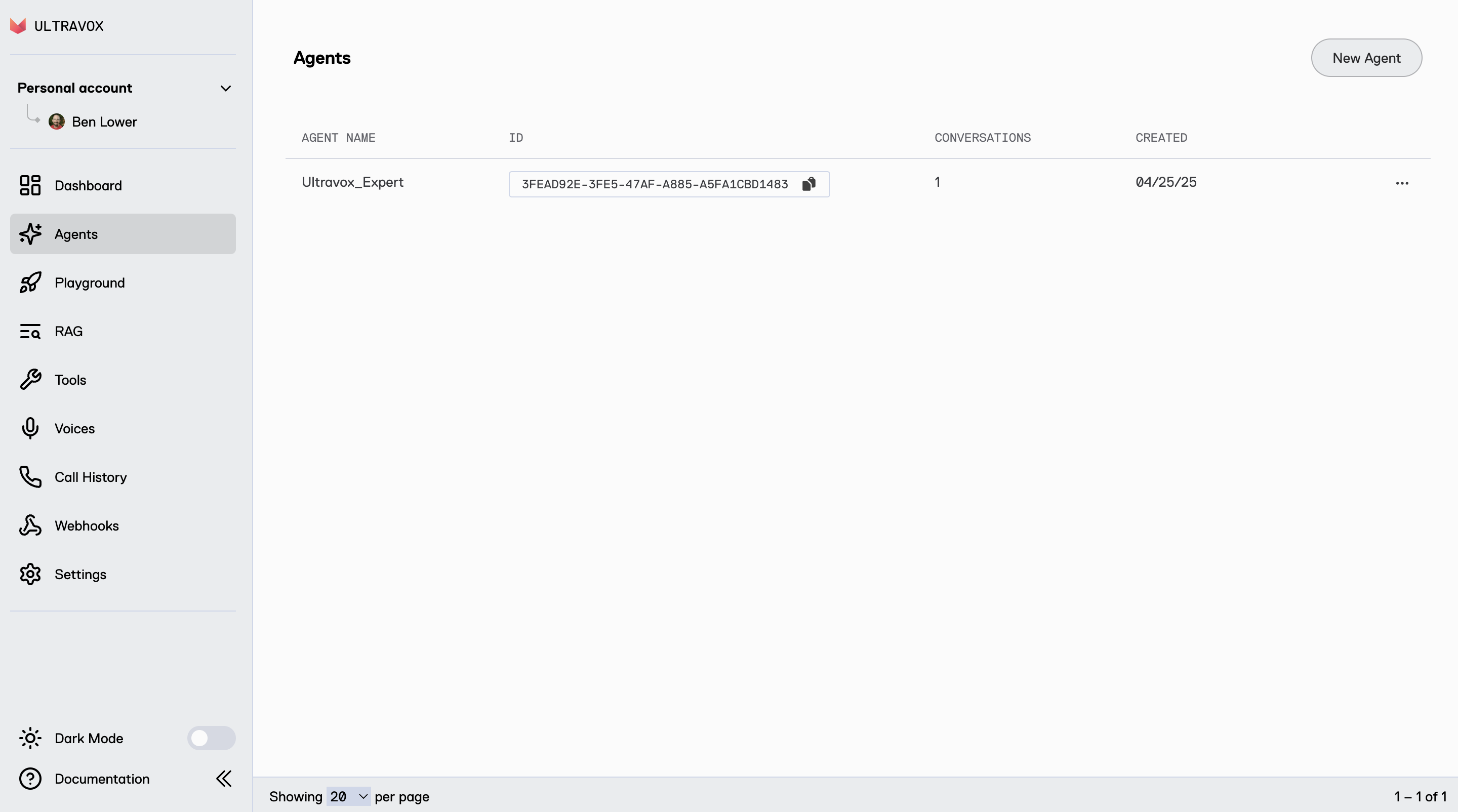
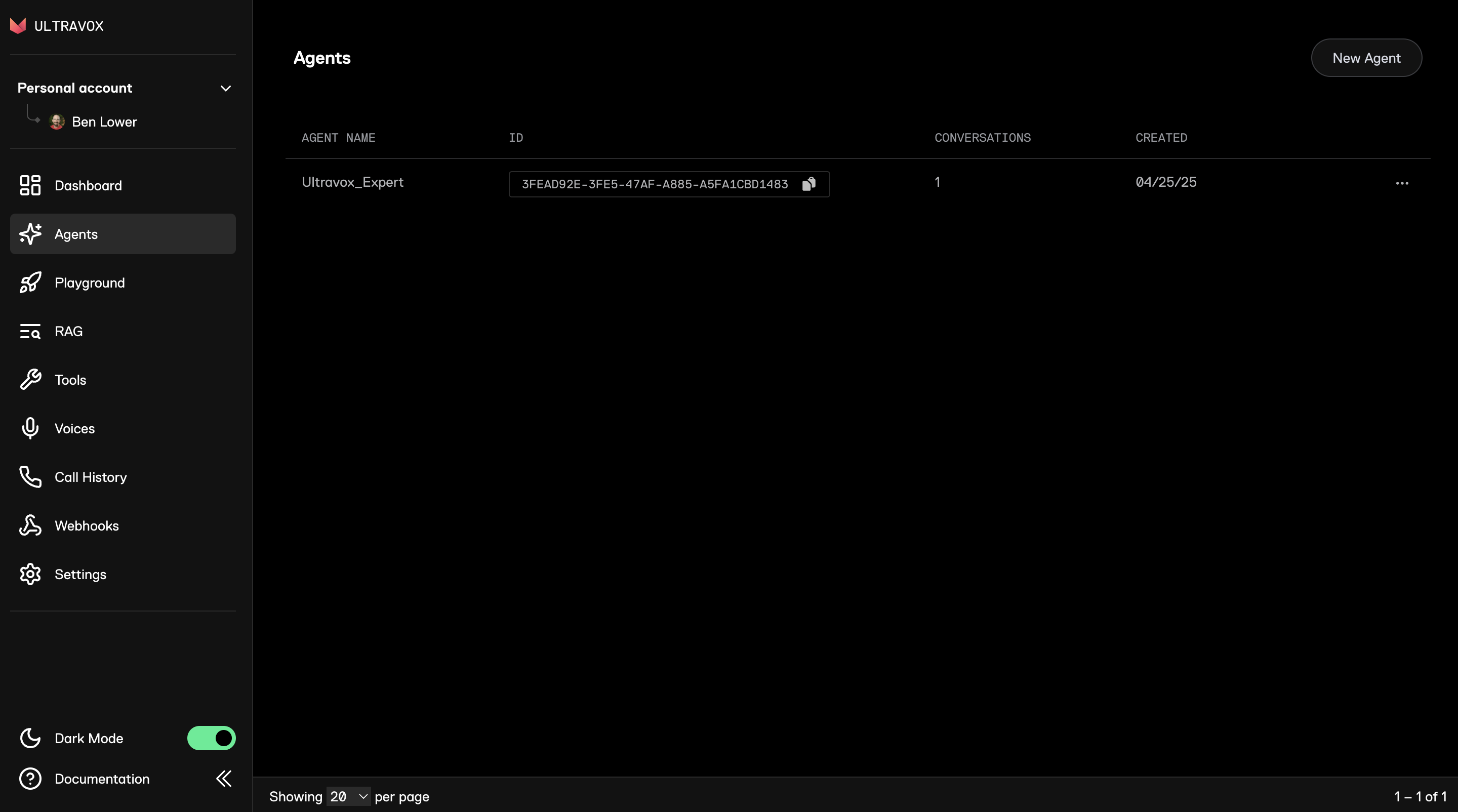 Click on `New Agent` in the top right corner.
Copy & paste the following for the name of your agent:
```text theme={null}
Tools_Agent
```
Next, copy and paste this system prompt:
```text theme={null}
If the user says "Oklahoma" you must immediately call the 'hangUp' tool.
```
Use the `Tools` drop-down and select the `hangUp` tool.
Click on `New Agent` in the top right corner.
Copy & paste the following for the name of your agent:
```text theme={null}
Tools_Agent
```
Next, copy and paste this system prompt:
```text theme={null}
If the user says "Oklahoma" you must immediately call the 'hangUp' tool.
```
Use the `Tools` drop-down and select the `hangUp` tool.
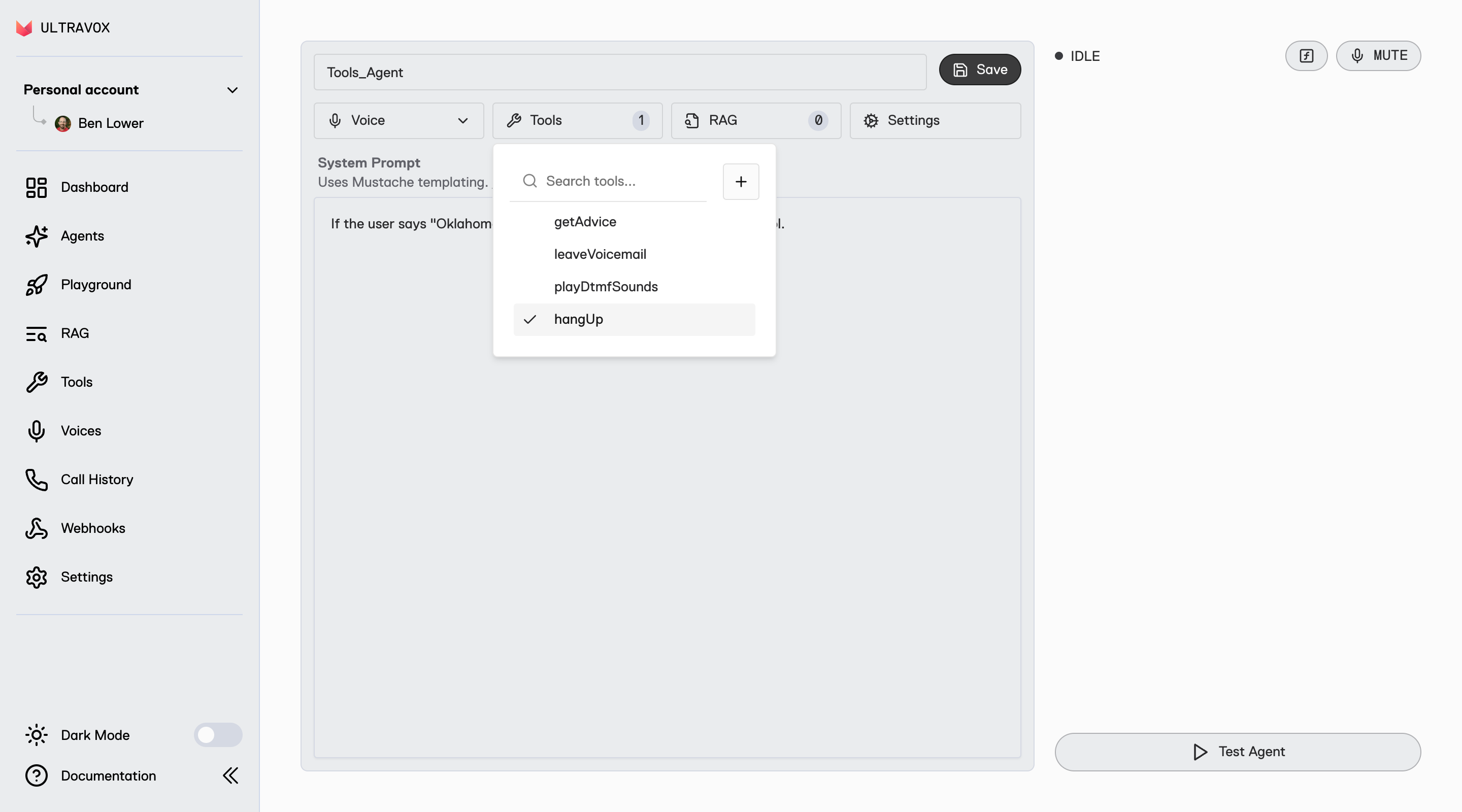
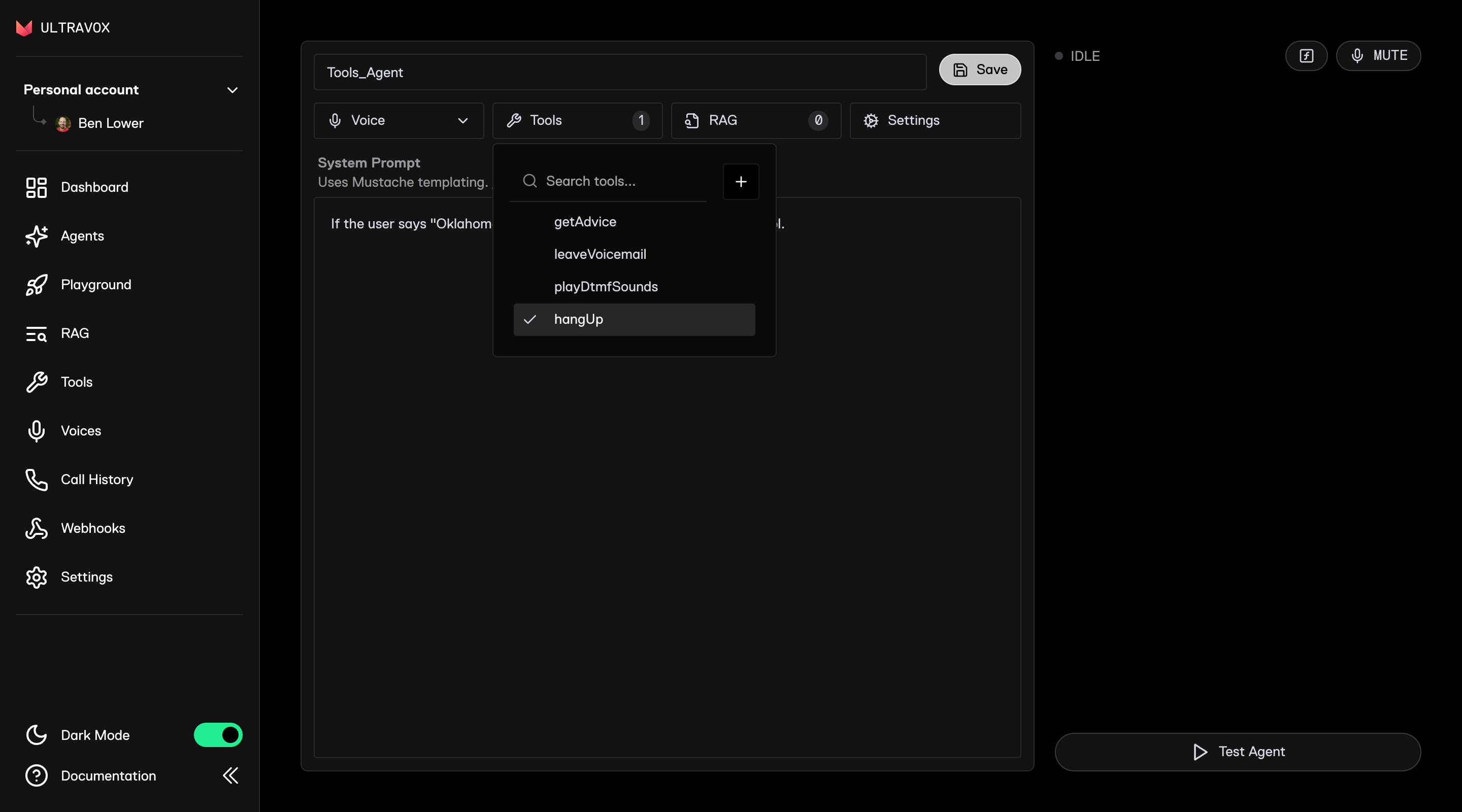 * Save the agent using the `Save` button. This agent will be used in part two of this quickstart.
* Start a call with your agent by clicking the `Test Agent` button on the bottom right.
* When you say the word "Oklahoma", the agent will call the tool and the call will end and you will see the call state change to `DISCONNECTED`.
## Creating a Custom Tool
This part uses the `Tools_Agent` we created above in [Using Built-in Tools](#using-built-in-tools).
* Save the agent using the `Save` button. This agent will be used in part two of this quickstart.
* Start a call with your agent by clicking the `Test Agent` button on the bottom right.
* When you say the word "Oklahoma", the agent will call the tool and the call will end and you will see the call state change to `DISCONNECTED`.
## Creating a Custom Tool
This part uses the `Tools_Agent` we created above in [Using Built-in Tools](#using-built-in-tools).
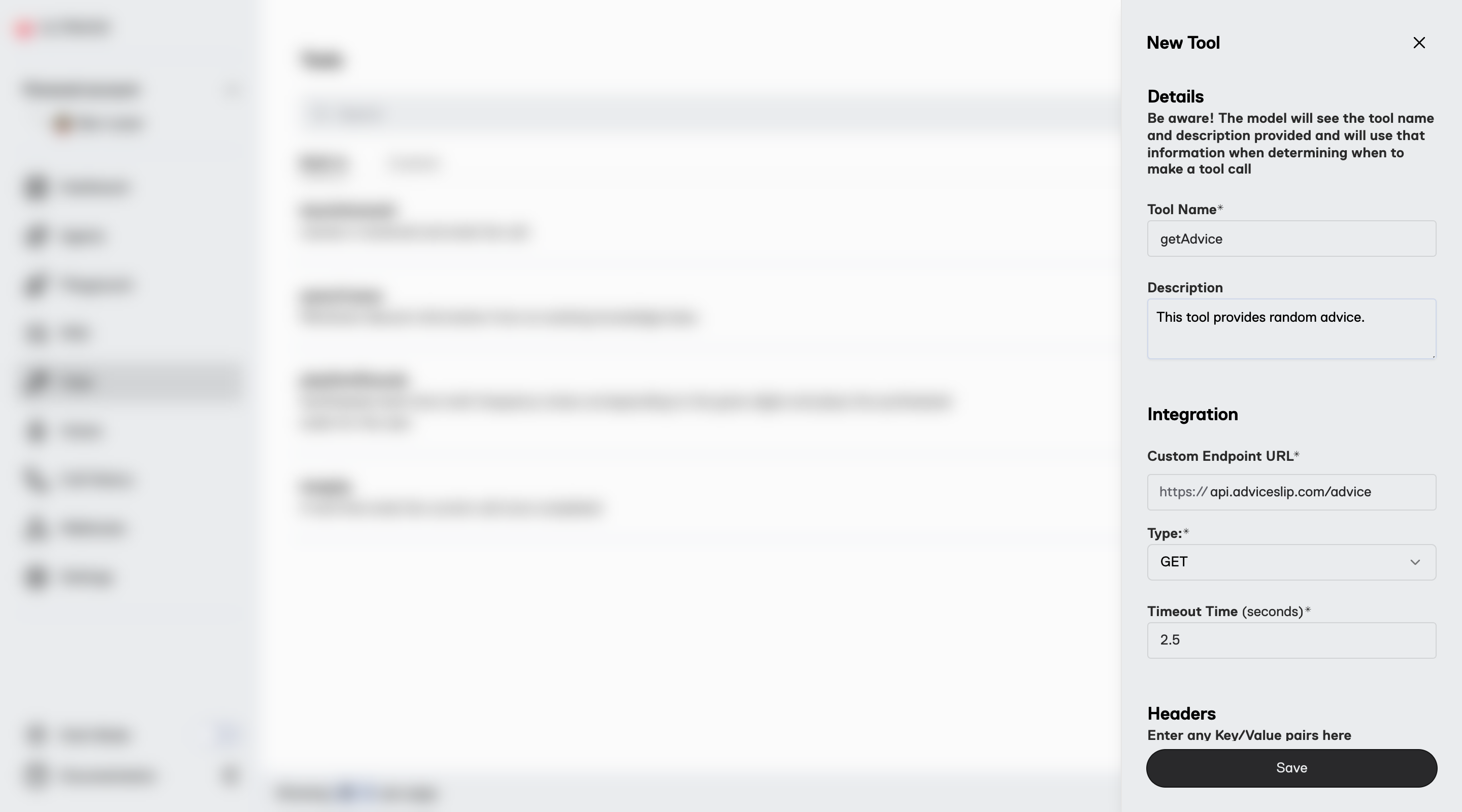
 Under `Tools` click on [New Tool](https://app.ultravox.ai/tools/new). Set properties as follows and then click on `Save`:
**Tool Name:**
```text theme={null}
getAdvice
```
**Description:**
```text theme={null}
This tool provides random advice.
```
**Custom Endpoint URL:**
```text theme={null}
api.adviceslip.com/advice
```
We are using the public adviceslip API as a quick example.
* Go to [Agents](https://app.ultravox.ai/agents)
* Click `...` on the right side of our `Tools_Agent`
* Choose `Edit`
Use the `Tools` drop-down and select the `getAdvice` tool. You can keep the `hangUp` tool selected.
Copy & paste the following for the system prompt:
```text theme={null}
You are the world's best companion. You love talking to people.
If someone asks for or needs advice, you must use the 'getAdvice' tool.
When you receive advice from the tool call, relay it back to the user.
If the user says "Oklahoma" you must immediately call the 'hangUp' tool.
```
* Save the agent using the `Save` button.
* Start a call with your agent by clicking the `Test Agent` button on the bottom right.
* If you ask for advice, the agent will now use the tool to get random advice from the adviceslip API.
* Saying "Oklahoma" will continue to trigger the hangUp tool.
## Next Steps
1. Learn more about [Built-in Tools](/tools/built-in-tools) you can use.
2. Dig into [HTTP vs. Client Tools](/tools/custom/http-vs-client-tools) to understand the differences.
3. Read about [Durable vs. Temp Tools](/tools/custom/durable-vs-temporary-tools).
Under `Tools` click on [New Tool](https://app.ultravox.ai/tools/new). Set properties as follows and then click on `Save`:
**Tool Name:**
```text theme={null}
getAdvice
```
**Description:**
```text theme={null}
This tool provides random advice.
```
**Custom Endpoint URL:**
```text theme={null}
api.adviceslip.com/advice
```
We are using the public adviceslip API as a quick example.
* Go to [Agents](https://app.ultravox.ai/agents)
* Click `...` on the right side of our `Tools_Agent`
* Choose `Edit`
Use the `Tools` drop-down and select the `getAdvice` tool. You can keep the `hangUp` tool selected.
Copy & paste the following for the system prompt:
```text theme={null}
You are the world's best companion. You love talking to people.
If someone asks for or needs advice, you must use the 'getAdvice' tool.
When you receive advice from the tool call, relay it back to the user.
If the user says "Oklahoma" you must immediately call the 'hangUp' tool.
```
* Save the agent using the `Save` button.
* Start a call with your agent by clicking the `Test Agent` button on the bottom right.
* If you ask for advice, the agent will now use the tool to get random advice from the adviceslip API.
* Saying "Oklahoma" will continue to trigger the hangUp tool.
## Next Steps
1. Learn more about [Built-in Tools](/tools/built-in-tools) you can use.
2. Dig into [HTTP vs. Client Tools](/tools/custom/http-vs-client-tools) to understand the differences.
3. Read about [Durable vs. Temp Tools](/tools/custom/durable-vs-temporary-tools).