> ## Documentation Index
> Fetch the complete documentation index at: https://docs.ultravox.ai/llms.txt
> Use this file to discover all available pages before exploring further.

# Creating an API Key

> Generate authentication keys for REST API access and voice agent deployment.

<Info>If you don't have an Ultravox account, you can sign up at [https://app.ultravox.ai](https://app.ultravox.ai). All new accounts get 30 free minutes of call time.</Info>

API keys must be managed using the Ultravox console. Once you have created an API key, you can use the REST API.

<Steps>
  <Step title="Sign-In">
    Make sure you are signed into you account at [https://app.ultravox.ai](https://app.ultravox.ai)
  </Step>

  <Step title="Go to Settings">
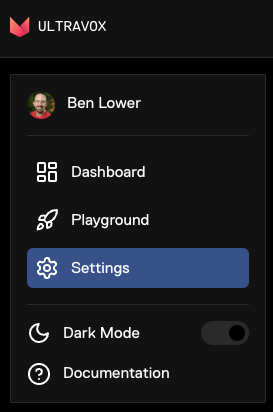
    In the left nav, click on Settings. Or navigate to [https://app.ultravox.ai/settings/](https://app.ultravox.ai/settings/).
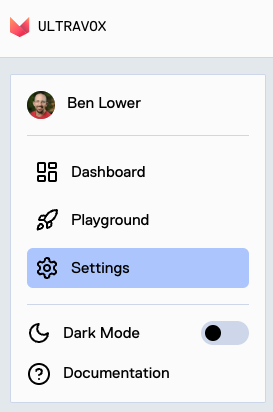
    <img className="block h-64 dark:hidden" src="https://mintcdn.com/fixie-ff99b187/RRU3EPaTCQ6pUNKk/images/screenshots/settings-light.png?fit=max&auto=format&n=RRU3EPaTCQ6pUNKk&q=85&s=ecbb0a4868c46ca3dd039c5a73dfb39e" width="273" height="412" data-path="images/screenshots/settings-light.png" />

    <img className="hidden h-64 dark:block" src="https://mintcdn.com/fixie-ff99b187/RRU3EPaTCQ6pUNKk/images/screenshots/settings-dark.png?fit=max&auto=format&n=RRU3EPaTCQ6pUNKk&q=85&s=b109af96d7a264ee29b932b278053185" width="273" height="412" data-path="images/screenshots/settings-dark.png" />
  </Step>

  <Step title="Click 'Generate New Key'">
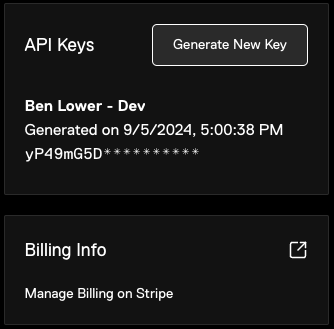
    In the API Keys sections, click on "Generate New Key".
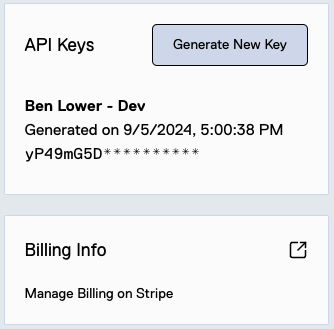
    <img className="block h-64 dark:hidden" src="https://mintcdn.com/fixie-ff99b187/RRU3EPaTCQ6pUNKk/images/screenshots/generatenewapikey-light.png?fit=max&auto=format&n=RRU3EPaTCQ6pUNKk&q=85&s=43e18da713178d3c40884e2cf3733a18" width="334" height="329" data-path="images/screenshots/generatenewapikey-light.png" />

    <img className="hidden h-64 dark:block" src="https://mintcdn.com/fixie-ff99b187/RRU3EPaTCQ6pUNKk/images/screenshots/generatenewapikey-dark.png?fit=max&auto=format&n=RRU3EPaTCQ6pUNKk&q=85&s=9bc981c12c09711b902c52d2fcd8d3d7" width="334" height="329" data-path="images/screenshots/generatenewapikey-dark.png" />
  </Step>

  <Step title="Name the Key and Save">
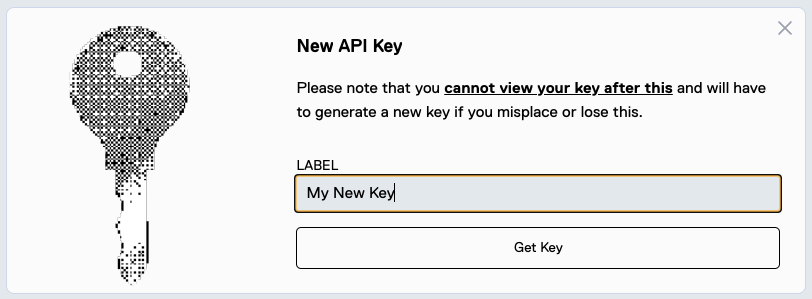
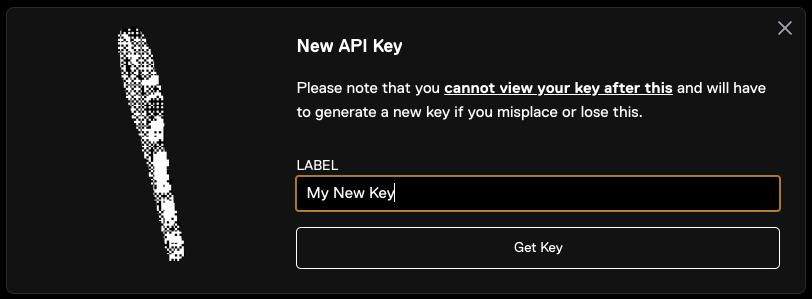
    Create a name for your new API key and create it. Make sure you save the key in a secure secrets manager.
    <img className="block h-64 dark:hidden" src="https://mintcdn.com/fixie-ff99b187/RRU3EPaTCQ6pUNKk/images/screenshots/newapikey-light.png?fit=max&auto=format&n=RRU3EPaTCQ6pUNKk&q=85&s=8f719c38ecb2a2b779e7d46092023d69" width="812" height="299" data-path="images/screenshots/newapikey-light.png" />

    <img className="hidden h-64 dark:block" src="https://mintcdn.com/fixie-ff99b187/RRU3EPaTCQ6pUNKk/images/screenshots/newapikey-dark.png?fit=max&auto=format&n=RRU3EPaTCQ6pUNKk&q=85&s=aed71fae2a5ce25380fb2b825531ca48" width="812" height="299" data-path="images/screenshots/newapikey-dark.png" />
  </Step>
</Steps>